
How to use App Lock in One UI 9.5 (and when Secure Folder is still better)
Pankil Shah / Android AuthorityAdd Android Authority on Google: App Lock has to be one of the most highly requested One UI features of all time. It’s something so basic, and yet Samsung hasn’t offered it for all these years. That’s finally changing. Samsung recently released the first beta of One UI 9.5 for the Galaxy S26 series, and it brings native app locking. Here’s how it works, and why it’s still not a replacement for Secure Folder.
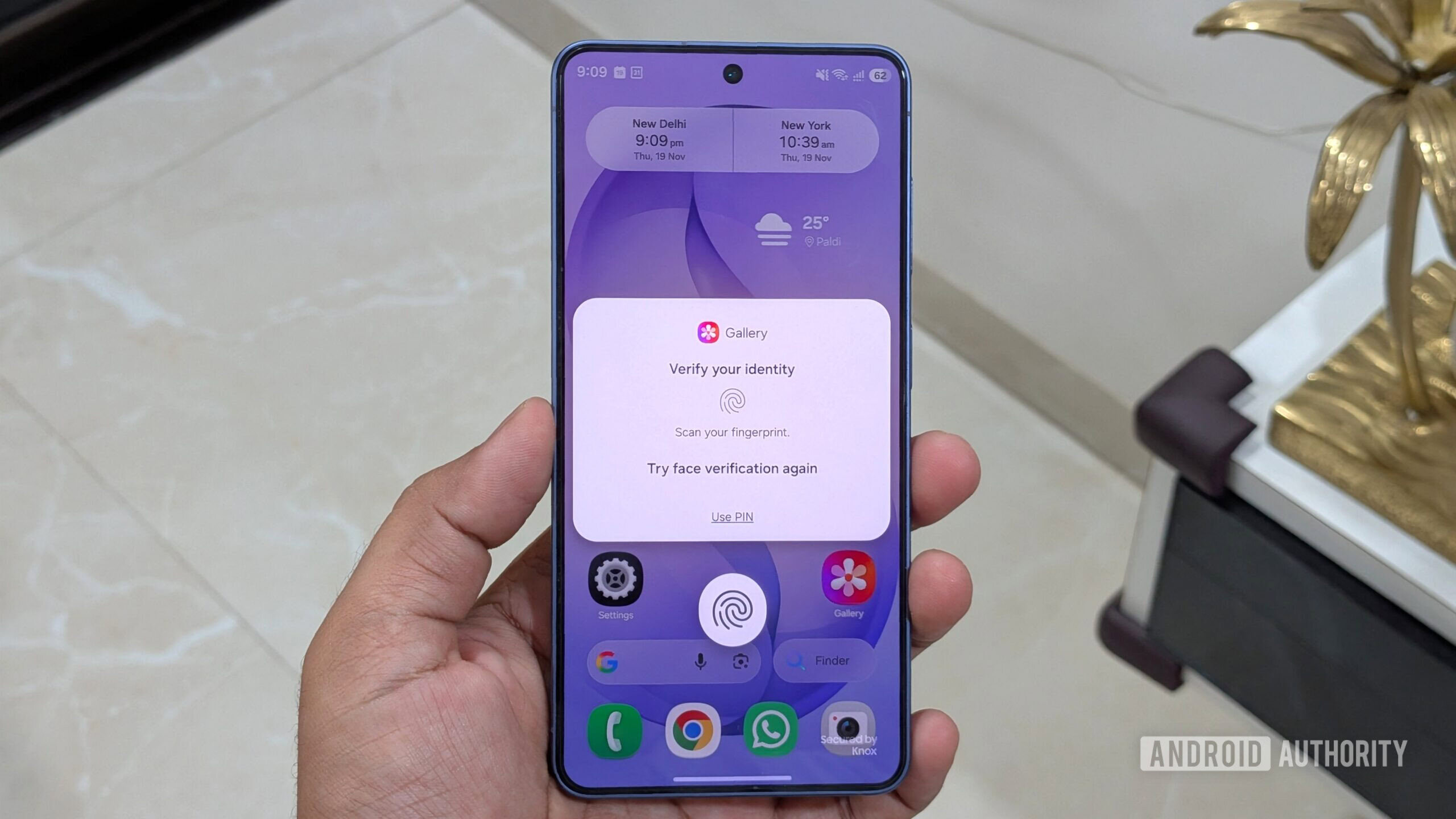
Readers’ pollWhich do you prefer for app privacy?0 votesApp lock0%Secure Folder0%One UI 9.5 brings native app locking to Samsung phonesPankil Shah / Android AuthorityFor years, locking apps on a Samsung phone meant you either had to rely on third-party app lockers or move apps to Secure Folder. Neither was ideal, honestly. Third-party app lockers are easy to bypass, while using Secure Folder makes accessing your apps inconvenient.One UI 9.5 finally gives you a more convenient way to keep your apps secure. It supports native app locking, which means you can directly lock apps on your Galaxy phone with your lockscreen PIN, fingerprint, or face. One UI 9.5 also lets fingerprint and face recognition work simultaneously, so accessing your locked apps is quick. If you’re already looking at the screen, the app will unlock even before you get a chance to use the fingerprint sensor.
Locking an app removes its home screen widget and hide its notification content automatically.
A locked app doesn’t appear any different in the app drawer, which keeps things discreet. However, locking an app does remove its home screen widget and hide its notification content automatically. It’s still not full proof, though. Photos, videos, contacts, and other data from your locked app can still be accessed by apps that have the necessary permissions. The good thing is that One UI does warn you about this when you enable App Lock for such an app. So, if you don’t want other apps accessing that data, you can easily revoke their permissions.If you have a Galaxy S26, you can install the One UI 9.5 beta through the Samsung Members app and try this feature right now. If not, simply wait for the stable release.
How to lock apps on your Samsung phone with fingerprint, face, or PIN
Once you’ve updated to One UI 9.5, locking apps on your phone is as easy as it gets.
Find the app you want to lock and long-press its icon.
Tap the padlock icon.
Tap Lock.
Review which apps can still access the locked app data, and hit Continue.
Use your lockscreen PIN, fingerprint, or face recognition to verify your identity and lock the app.
If you want to remove the App Lock at any point, simply long-press its app icon again, and tap the padlock icon. There’s also another way to lock apps in One UI 9.5, which is a little faster if you want to lock multiple apps at once.
Open the Settings app on your phone.
Head to Security and privacy > More privacy settings > App Lock.
Enable the toggles next to the app you want to lock.
App Lock works great, but it’d be even better if Samsung allowed using a separate PIN or fingerprint just for app locking. Right now, you’re stuck with using the lockscreen PIN and fingerprint. Anyone who knows your lockscreen code effectively has the key to every locked app too, which kind of defeats the purpose if you’re trying to keep something away from your roommates or kids.If you’re locking an app that you don’t need often, you can even hide it from the home screen and app drawer. For this, head to Settings > Home screen > Hide apps on Home and Apps screens, select the locked app you want to hide, and hit Done.
App Lock is convenient, but it can’t replace Secure FolderPankil Shah / Android AuthorityApp Lock is great for quick, casual privacy, but it’s not actually meant to replace Secure Folder. The biggest gap is what we touched on earlier — app lock stops someone from opening the app itself, but it doesn’t stop other apps on your phone from accessing some of its data.
App Lock is convenient but not 100% secure.
For instance, locking WhatsApp doesn’t automatically lock WhatsApp photos and videos in your Gallery. The same goes for other apps. Locking Gmail doesn’t mean any attachments you download are out of reach. Those remain accessible. So yes, App Lock is convenient but not 100% secure.None of this is a problem with Secure Folder. It’s a completely sandboxed, encrypted space — any accounts, apps, or files you add there are totally cut off from the rest of your phone. If you genuinely need to keep something locked away at all cost, Secure Folder is still the way to go. It means extra steps for getting to the app you actually want, but it does give you that peace of mind of your app being inaccessible for others.
App Lock isn’t some groundbreaking feature, but it’s about time Samsung added it. After all, iPhones have offered it for a couple of years now. What do you think of Samsung finally bringing native app locking in One UI 9.5? Share your thoughts in the comments below.